Install by script Install manually Mouldings Go Backward
Mouldings Installation (script method)
With this new method plugins and libraries will be automatically put in their proper places.
Furthermore a new [Mouldings]  palette will be added to your standard instruments palette, populated with all the package plugins.
Also a couple of menus will be added to Instruments -> Partners Products -> Mouldings.
Let's see how it works:
You start with the following folder (after you have unpacked the downloaded zip, suitable for your Vectorworks® version).

Open Vectorworks®, then once it started, open the Install script file (or double-click it from your Os).
It opens with the following content:
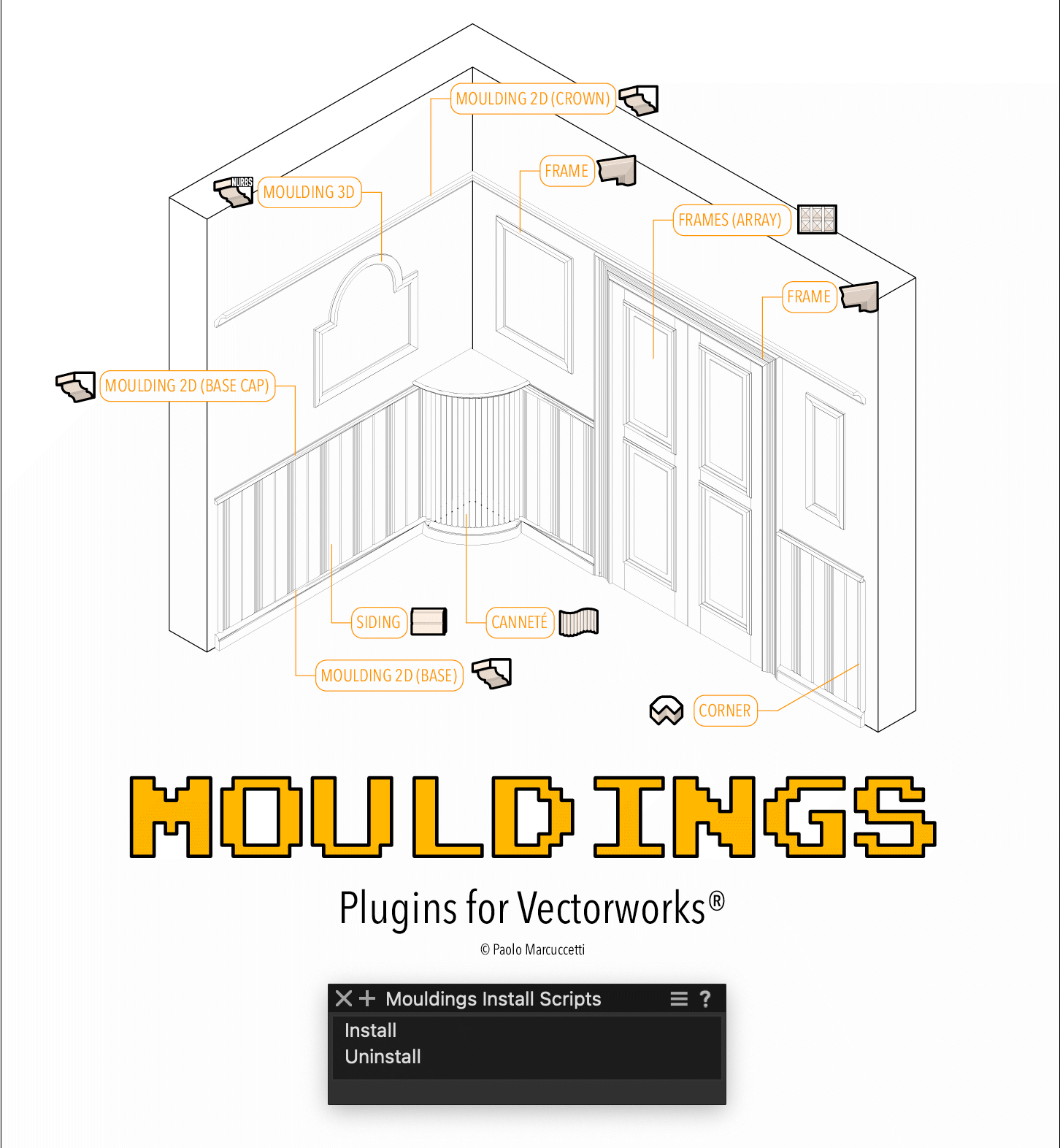
To install all (files and workspace setup), just double click the Install item in the Mouldings Install Scripts palette.
First Install (Ex Novo)
Whenever you are performing your first time Mouldings install, the process go through the end showing the messages:
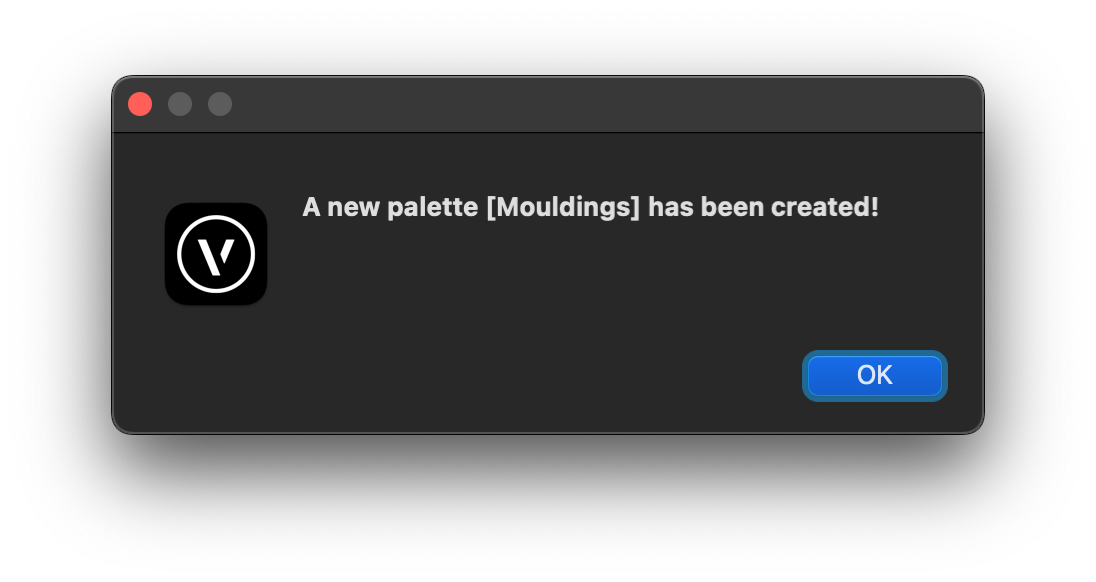
That states the new Mouldings palette has been created in the standard palette
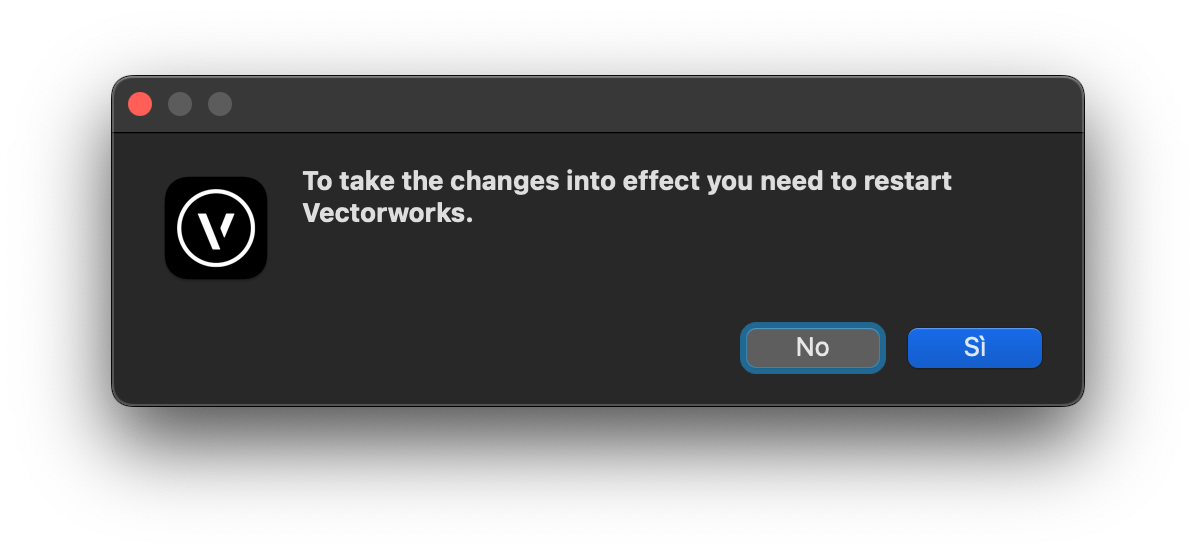
This indicates that Vectorworks® needs to be restarted to load the new plugins.
Install on existing version
Backup! Backup! Backup!
Before proceeding with the update, it is always a good practice to backup the old version, particularly the Mouldings folder (inside Plugins) and the Mouldings - Models folder (inside Libraries/Defaults). If, for any reason, the new version causes issues, you can restore the old version.
The installation script check if there are files (libraries or plugins) related to the moulding package, already existing in the Vectorworks® user folder.
This check is performed in order to prevent the automatic replace of profiles created by the user in the Mouldings - Models library.
As you should know, the package comes with a huge number of profiles, but you can create yours and add them to the library so you can have displayed in the profiles dialog.
The process to add custom profiles to the library is showed in the Mouldings Manual PDF, at the topic Rebuild library.
Anyway, you'll be informed by this message:
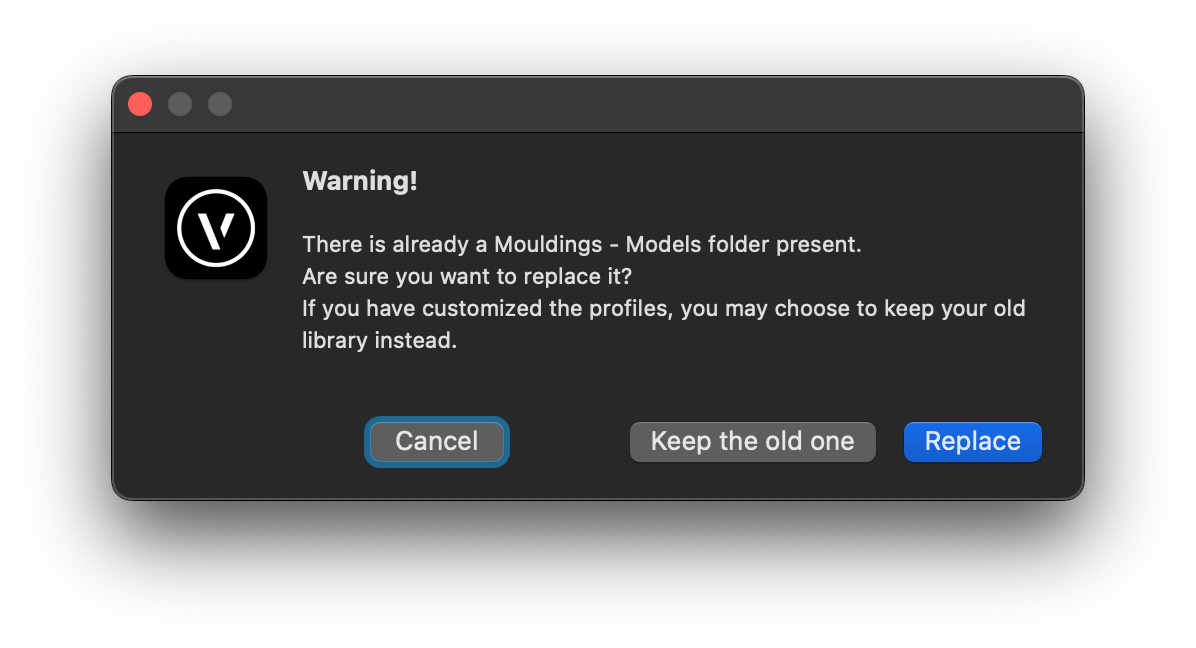
that gives you three choices:
- Cancel that means abort the installation
- Keep the old one that leaves in place the old (customized) library
- Replace that replaces your existing library with the new one (you cannot recover from this op unless you have a backup!)
Also about the plugins, you are given a message:

in this case you get two choices:
- Cancel that means abort the installation
- Replace that replaces your existing plugins
In the end, unless you cancelled at some time, you need a fresh restart to load the new plugins.
Uninstall
In case the installation did not worked (it sometimes happens!), you may end up with the mouldings palette overpopulated.
Don't panic, double click the Uninstall script, restart when asked then double click on the Install script again.
Also you may not be satisfied with the mouldings plugins package and you want get rid of it, double click the Uninstall script and restart.
Just note that plugins are removed from the workspace, but are still present in the Mouldings folder inside user/Plugins, as well as the Mouldings - Models folder in user/Libraries/Defaults.
Mouldings Installation (manual method)
This is the classic method where you have to put folders in their proper locations and you have to add tools and menus manually to your workspace.
Let's see how it works:
You start with the following folder (after you have unpacked the downloaded zip, suitable for your Vectorworks® version).
- Move the “Mouldings” folder inside your Vectorworks Plug-ins folder (*)
- Move the “Moulding - Models” folder inside Vectorworks Libraries/Defaults folder (*)
- Restart Vectorworks.
- Edit your workspace adding the (Mouldings) plugins.
Modify the tool palettes adding the Plugin Objects you find under the "Mouldings" category
Modify the menu adding the Tool Items you'll find under the "Mouldings" category
(*) You can choose either the Vectorworks® program folder or the Vectorworks® user folder.
Here the official instructions (from help.vectorworks.net) for customizing the workspaces:
Here instructions to add / modify tool palettes and tool sets (when adding the plugin objects):
and here instructions to add / modify modify menus and commands (when adding the menu items):